Duration: 8 minutes (the guide) — 30 to 90 minutes (the assessment itself, depending on the activated frameworks) For whom: Admin / Owner / Collaborator of an SME Prerequisite: Having created your organisation and chosen your frameworks
The assessment is the heart of CyberPassport. You answer a single questionnaire that covers all activated frameworks — questions shared across frameworks are asked only once.
Step 1 — Access the questionnaire
From your dashboard, click "Assessment" in the sidebar (or go to /assessment).
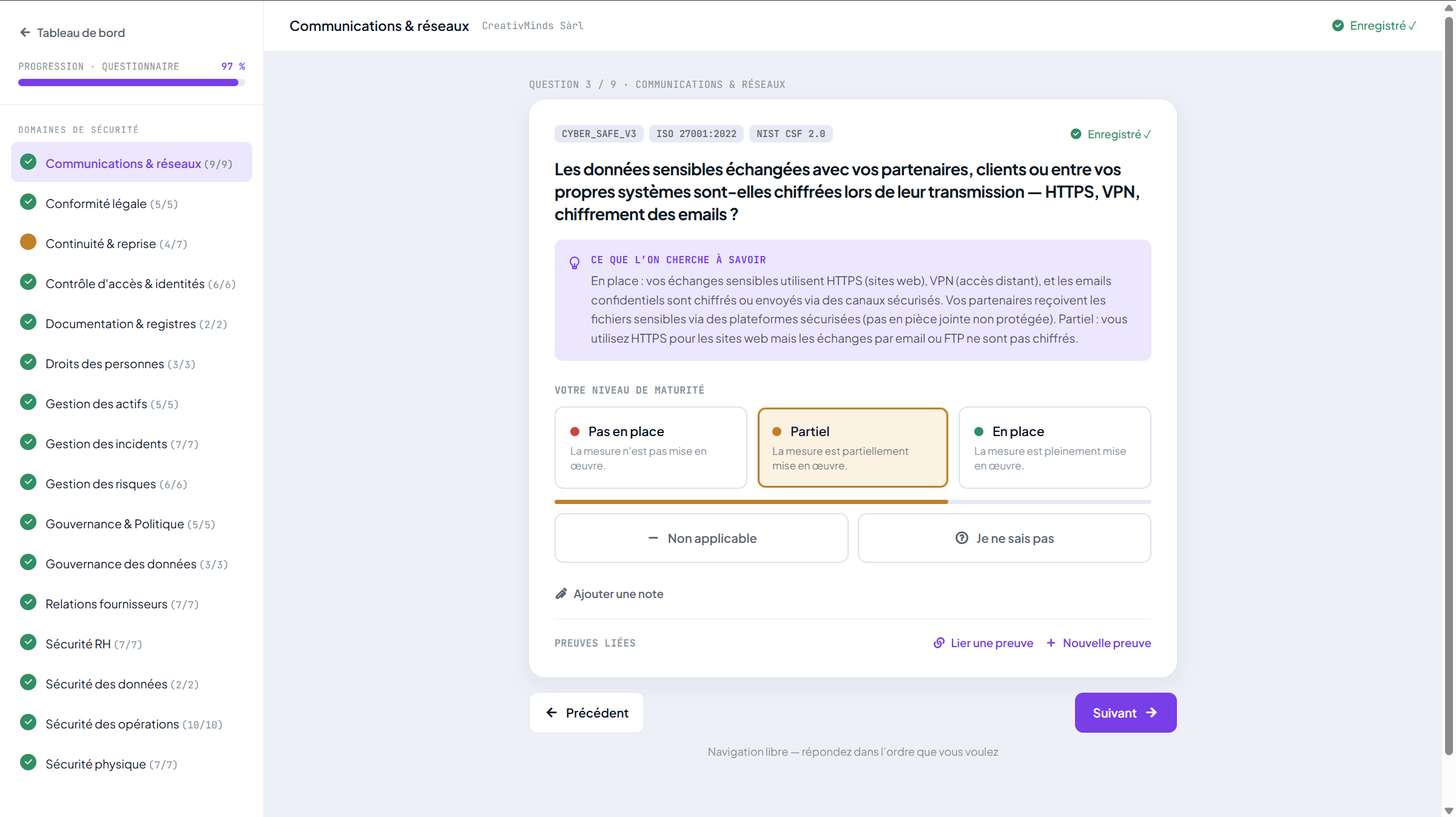
Anatomy of the page
On the left, the navigation sidebar:
- A quick link "⚙ Configure my frameworks →" at the top (useful if you want to add/remove a framework)
- Overall counter:
42 / 86 questions answered - List of domains (Communications & networks, Governance, Physical security, etc.) with a green ✓ as soon as a domain is complete
- Progress by framework: progress bars for NIST CSF 2.0, ISO/IEC 27001:2022, Cyber-Safe…
On the right, the questions area:
- Title of the active domain
- List of the domain's questions, each with 5 possible answers
Step 2 — Answer the questions
Question format
Each question is in plain language (no raw technical jargon). Example:
"Is your sensitive data — exchanged with your partners, customers or between your own systems — encrypted during transmission (HTTPS, VPN, email encryption)?"
Below the question, 5 possible answers:
| Choice | Meaning |
|---|---|
| 🔴 Not in place | The measure is not implemented. |
| 🟠 Partial | The measure is partially implemented. |
| 🟢 In place | The measure is fully implemented. |
| ⚪ Not applicable | This question does not apply to your context (e.g. no just-in-time production). |
| 🟣 I don't know | You don't have the information to answer. To be firmed up. |
Steps
- Read the question.
- Click the answer that best matches.
- (Optional) Add a comment to clarify your answer, explain a nuance, or point to a piece of evidence.
- The answer is saved automatically (a "Saved ✓" badge appears on the right).
- Move on to the next question.
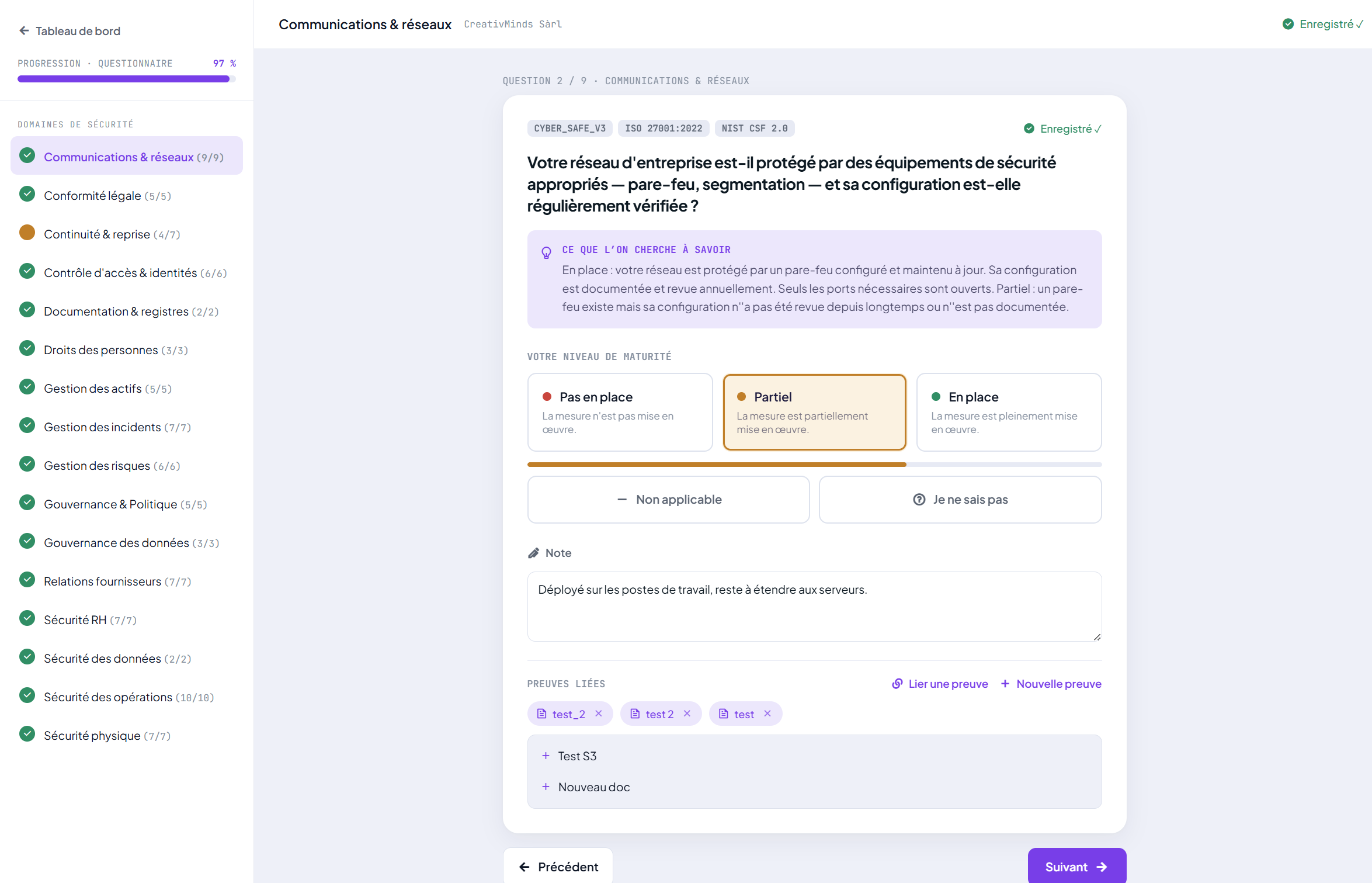
🟣 Tip: saving is automatic with a slight delay (~1 second). No need to click a "Save" button — close the tab whenever you like, your answers will be there when you return.
⚠️ Important:
- "I don't know" answers lower your confidence score in the final AI report. Prefer "Not applicable" only when it is legitimate.
- "Not applicable" answers take the question out of the calculation (neither in the numerator nor the denominator).
Step 3 — Navigate between domains
Sequential navigation
At the bottom of each domain, two buttons:
- ← Previous domain (left)
- Next domain → (right)
On the last domain, the right-hand button becomes "View results" and takes you to the dashboard.
Free navigation
You can click any domain in the left sidebar to jump straight to it.
🟣 Tip: if you are discovering the questionnaire, do a quick first pass, answering "I don't know" to questions that require information you don't have to hand. Then come back to firm things up calmly. This is more efficient than getting stuck for 10 minutes on a single question.
Step 4 — Track your progress
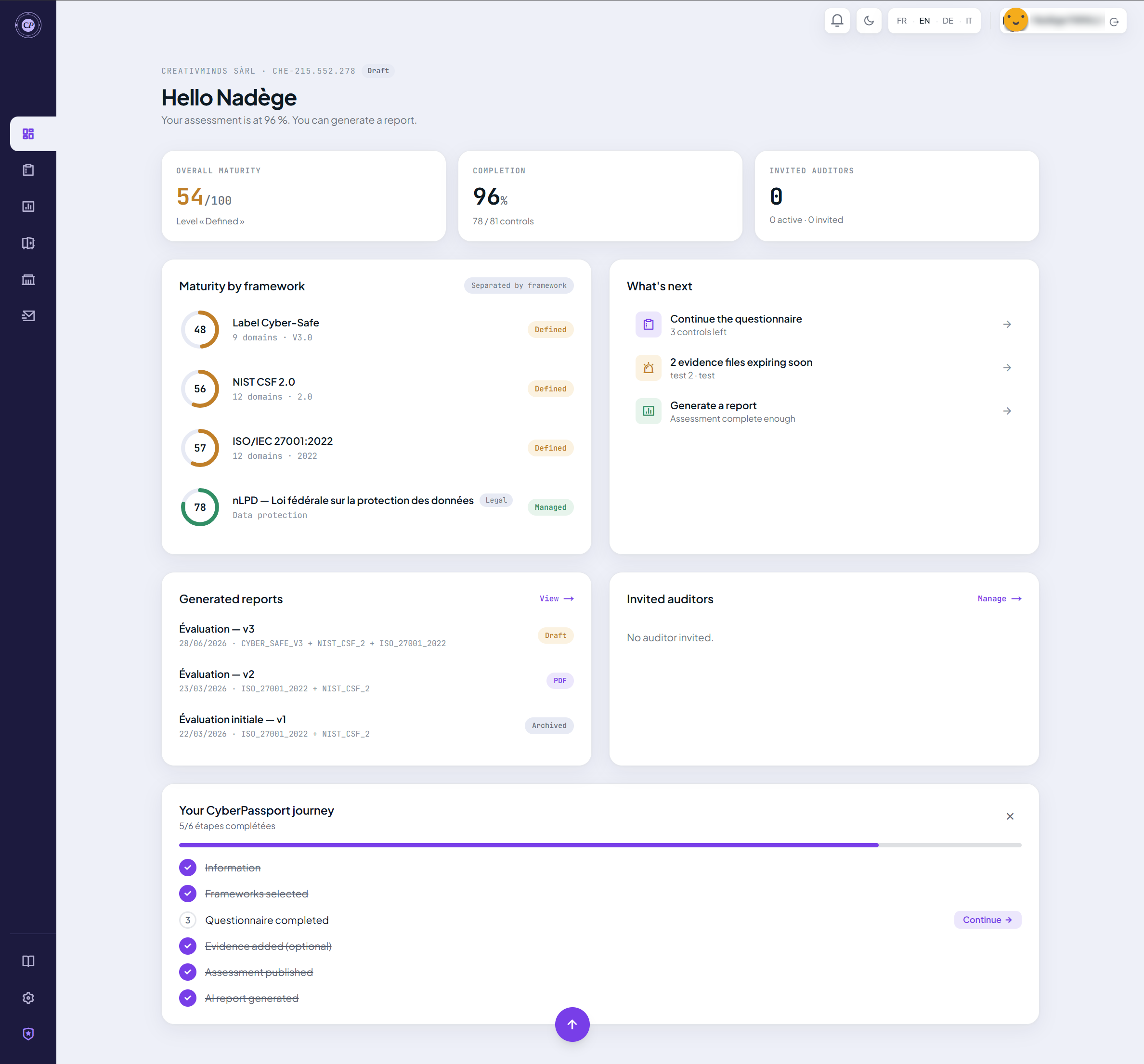
On the dashboard (/dashboard)
- Overall score: weighted average score across all your frameworks
- Score by framework: dedicated bars (NIST CSF 2.0 → 56.3%, ISO 27001 → 78.4%, etc.)
- Detail by domain: under each framework, bars by domain (Communications & networks → 43.8%, Physical security → 80%…)
- Maturity level: 1 to 5 (1 = Initial, 5 = Optimised)
Special case — no questions available
If you see the "No questions available" screen with a large purple shield and a "Configure my frameworks →" button:
→ This means no framework is activated. Click the button and activate NIST, ISO or another.
Step 5 — Link your evidence to controls
A piece of evidence = a document (PDF, image, example policy) that backs up an answer. All evidence lives in the Evidence Vault (/vault).
Uploading a piece of evidence
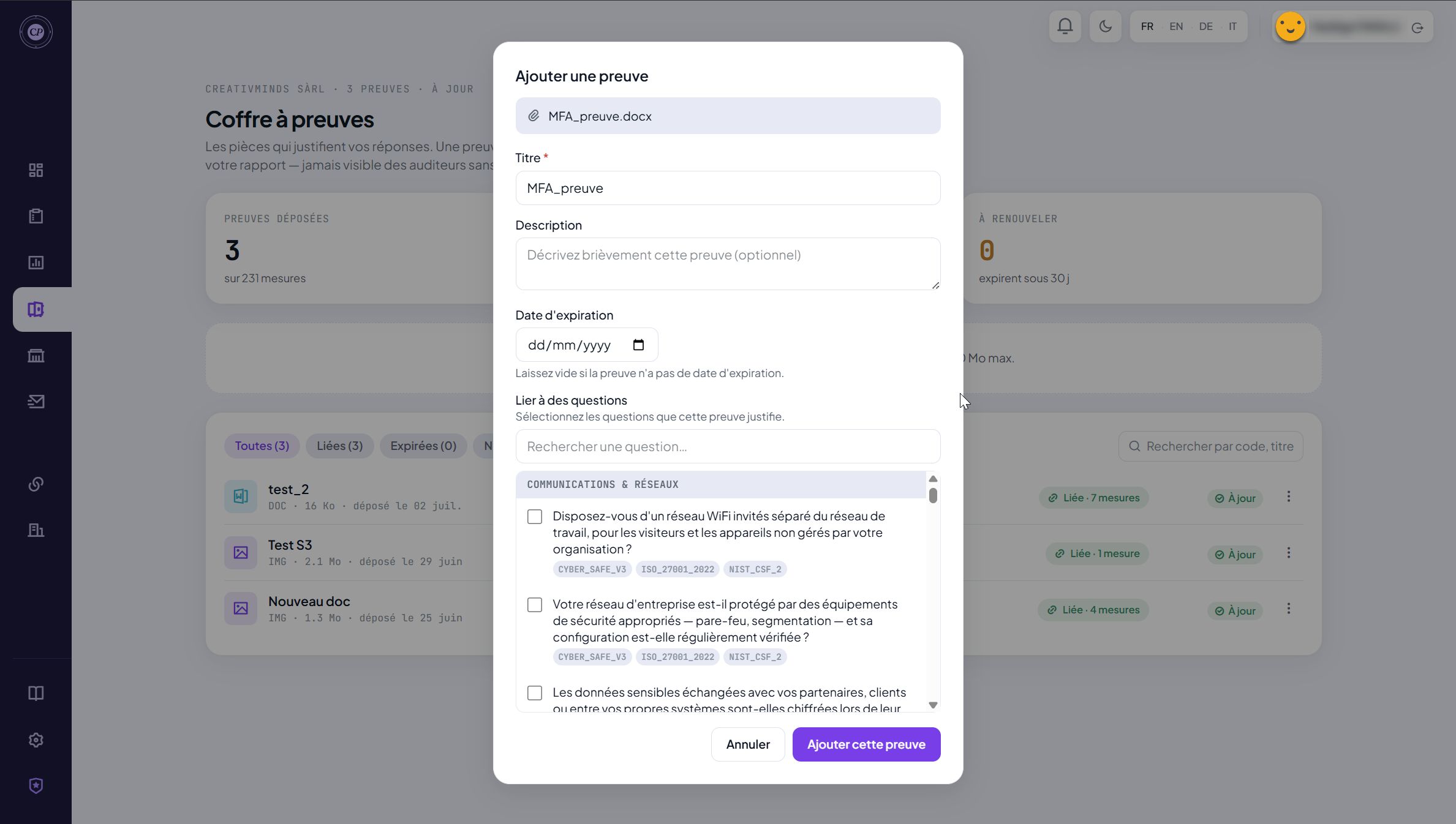
- Sidebar → "Evidence Vault" → "Add evidence" button (top right).
- Drag and drop a file or click to select (PDF, DOCX, PNG, JPG…).
- Fill in:
- Title (e.g. "Password policy")
- Description (optional)
- Expiry date (optional — useful for annual attestations)
- Select the controls this evidence covers. You can select several.
- Click "Upload".
Why link to controls?
- An invited auditor will immediately see which evidence covers which control
- Your report will show the evidence attached to each domain
- Expiry dates are monitored: you receive a notification when a piece of evidence is about to expire
🟣 Tip: a single piece of evidence can cover several controls. E.g. your signed IT charter typically covers 5–10 different controls (password policy, acceptable use, etc.).
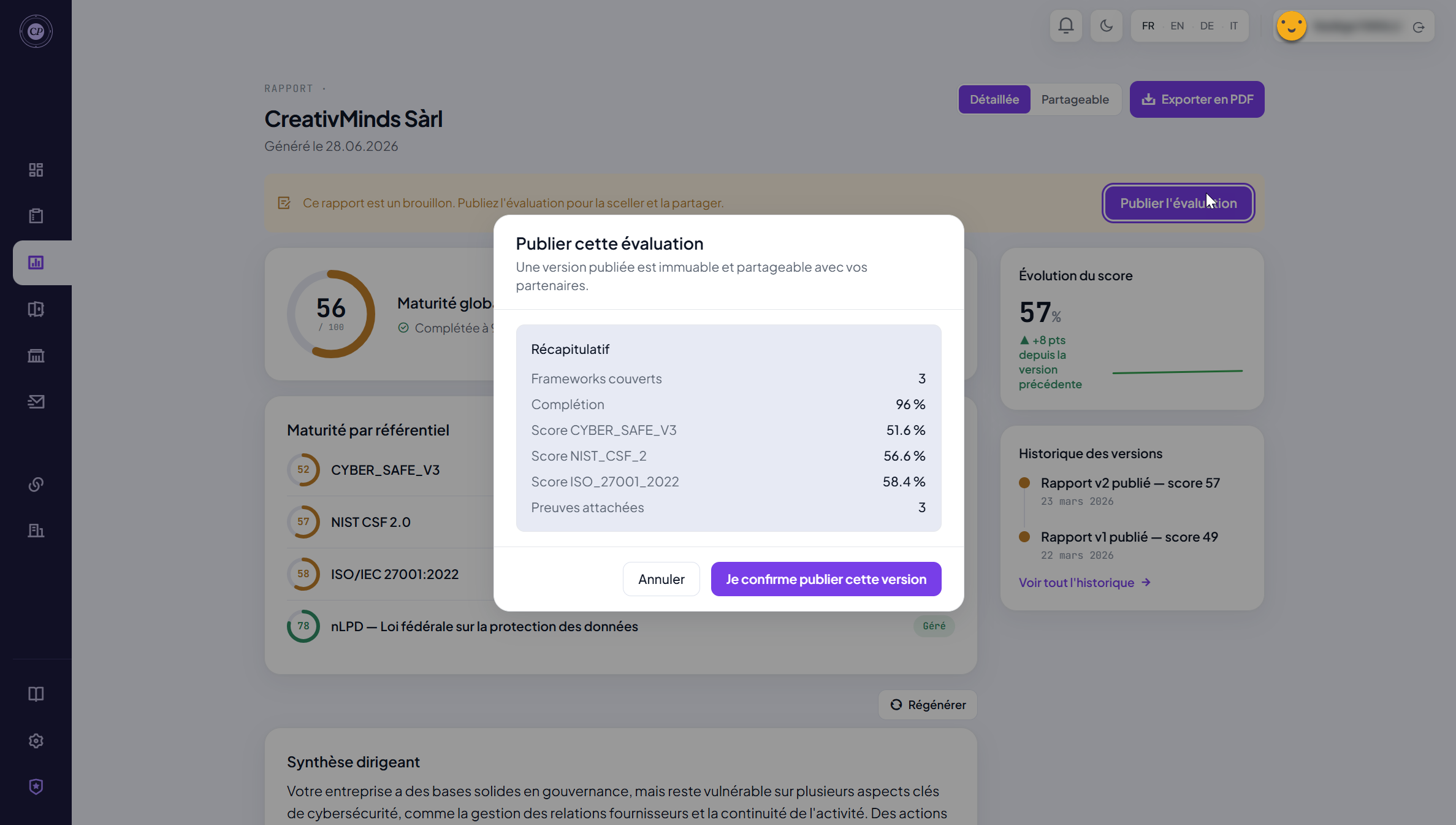
Step 6 — Publish your assessment
When you consider your assessment complete enough (typically ≥ 80% of questions answered):
- Dashboard → "Publish assessment" button (top right, purple).
- Confirm in the modal.
- CyberPassport creates an immutable version of your assessment.
- This version is cryptographically sealed (SHA-256 hash) — this is the version you will share with your customers / auditors.
What happens on publication?
- ✅ The narrative AI report is generated (executive summary · strengths · areas for improvement · recommendations · 90-day action plan)
- ✅ A seal is created in the database — the hash appears on your report
- ✅ A new version is recorded in the history (
/dashboard/history) - ✅ Invited auditors (see guide 05) receive a notification
⚠️ Important: publishing does not mean you can no longer touch your assessment. You keep answering questions and adding evidence. When you publish again, a new version is created and the old seal is marked "replaced" — but the regulators or auditors who received the old hash will still be able to verify that the version they saw was indeed authentic.
Next step
→ Enable Cyber-Safe (if the Swiss label interests you) → Or Invite your team