Duration: 5 minutes For whom: any new CyberPassport user
CyberPassport offers two ways to sign up:
- With your Google account (fast, recommended for business accounts)
- With an email address + a password (self-contained, no Google account required)
You can also combine the two later: add a password to an account created with Google.
Option A — With my Google account
Steps
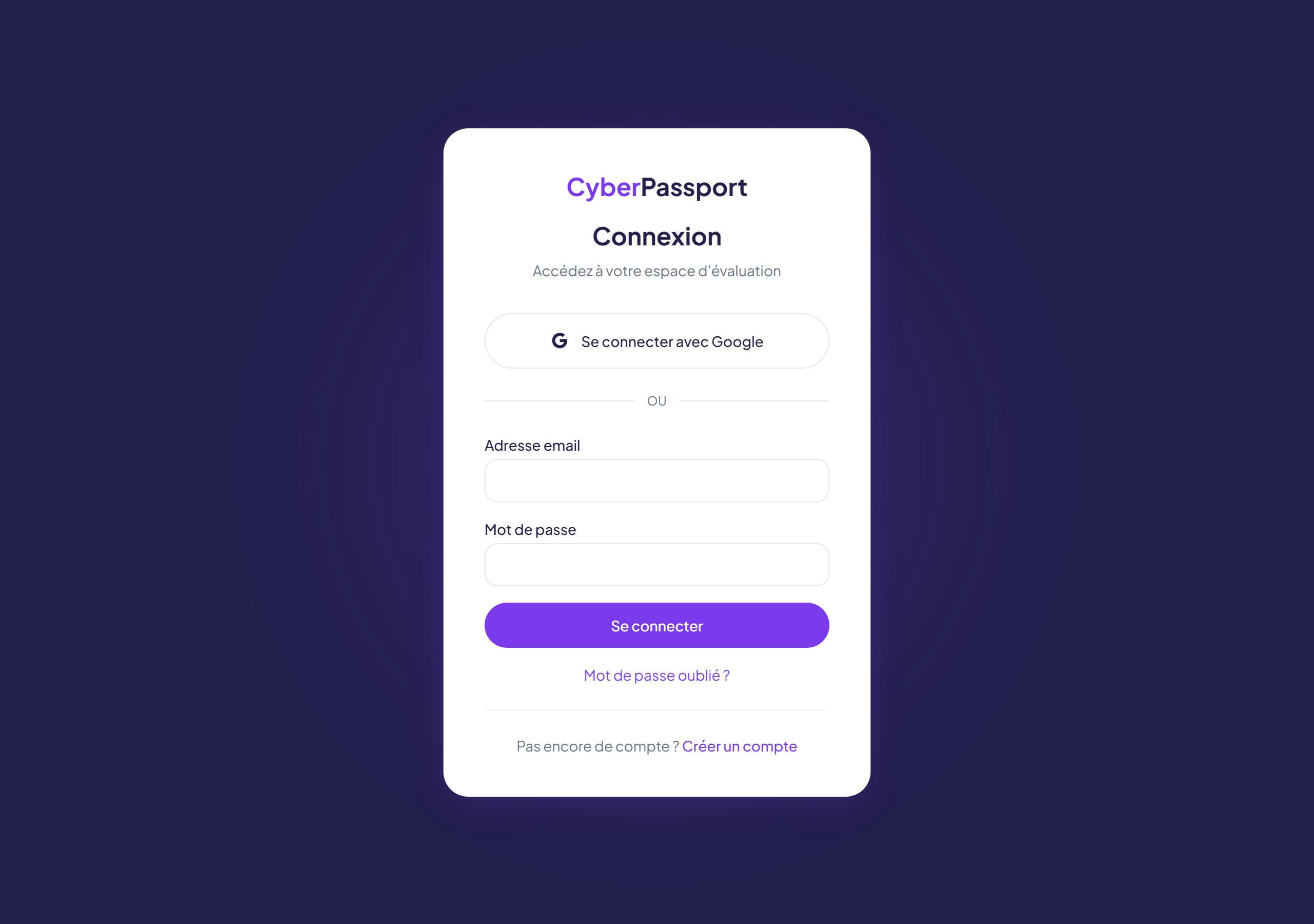
- On the home page, click "Get started for free" (or go to
/loginthen "Sign up"). - Click the "Sign in with Google" button.
- Choose the Google account you want to use.
- CyberPassport automatically redirects you to the organisation creation screen.
🟣 Tip: use your work Google account (firstname.lastname@your-company.ch) rather than a personal Gmail — your report will carry this address, which is more credible to your customers and auditors.
Option B — With email + password
Step 1 — Sign up
- On the
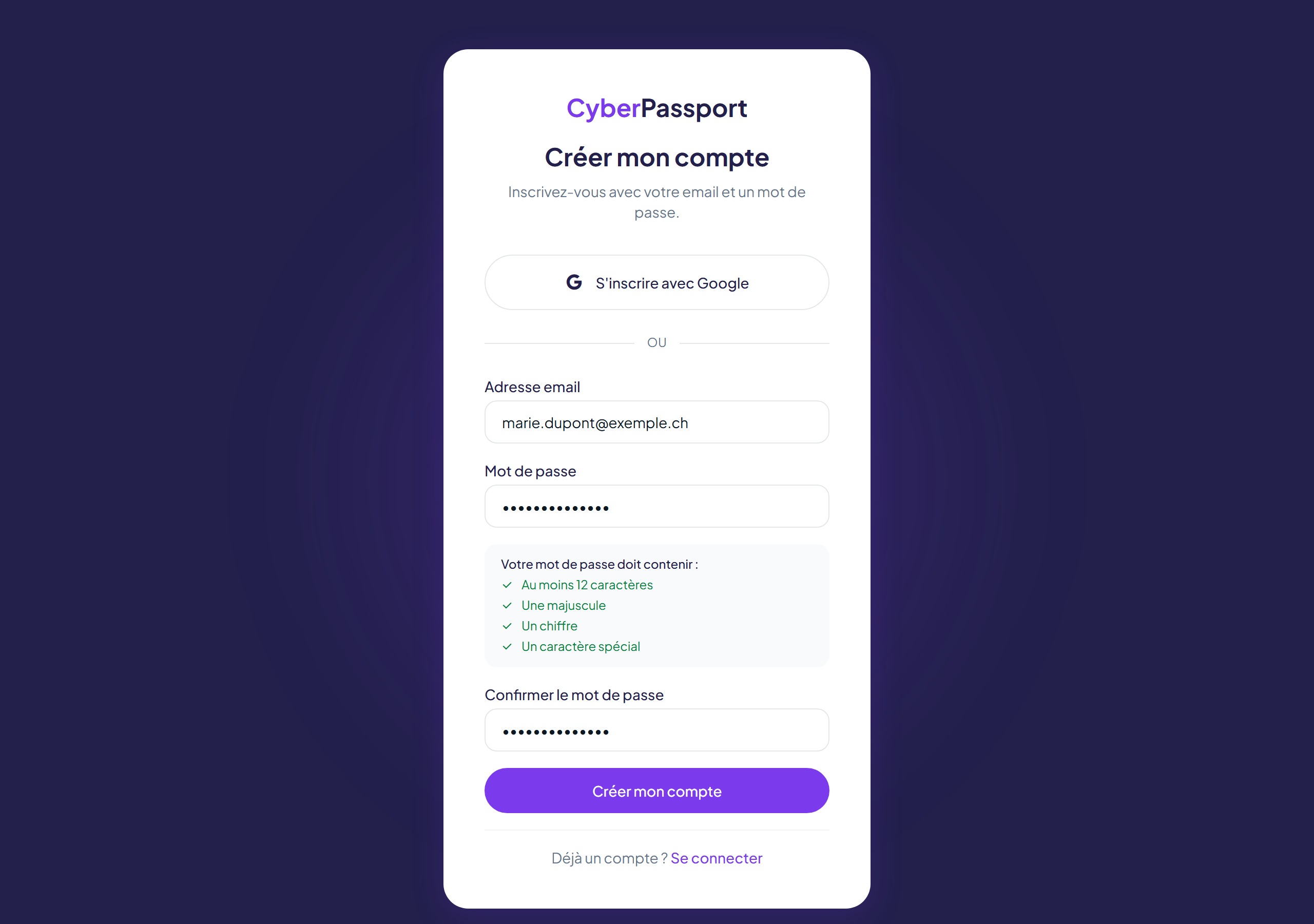
/registerpage, enter your work email address. - Choose a password that meets the security policy:
- At least 12 characters
- At least 1 uppercase letter
- At least 1 digit
- At least 1 special character (
!@#$%&*…)
The 4 criteria appear in real time below the field — they turn green (✓) as your password meets each one.
- Confirm the password (identical entry).
- Click "Create my account".
Step 2 — Verify your email
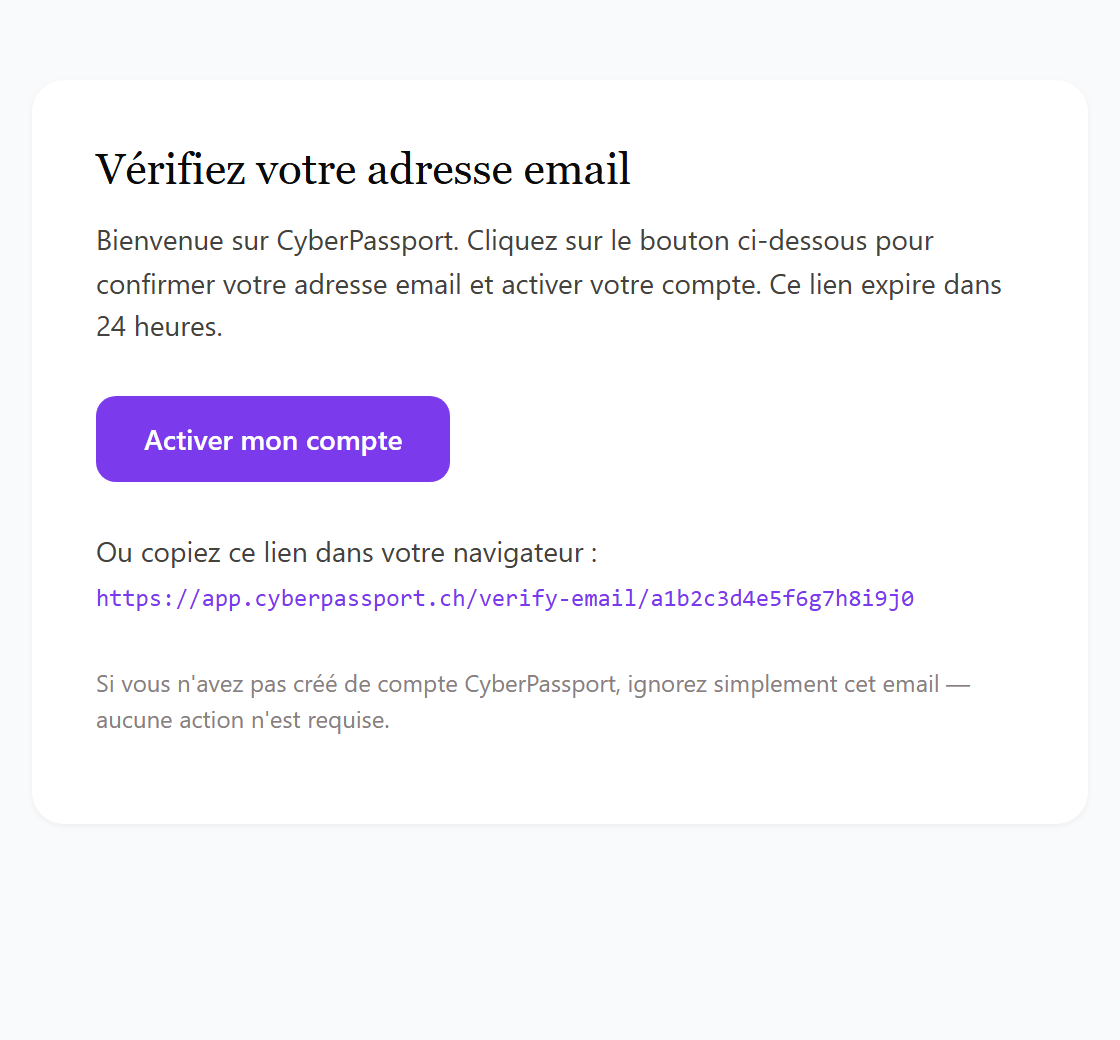
CyberPassport immediately sends an email to the address you provided, from noreply@cyberpassport.ch. Subject: "[CyberPassport] Verify your email address".
- Open the email.
- Click the purple "Activate my account" button.
- You land on a confirmation page: "Your account is activated."
- Click "Sign in".
⚠️ Important: until you have clicked the activation link, you cannot sign in. If you try to sign in beforehand, a message will remind you and offer to resend the email.
💡 Good to know: the activation link is valid for 24 hours. After that, you need to request a new link from the sign-in page.
Step 3 — Sign in
- On
/login, enter your email + password. - Click "Sign in".
🟣 Tip: your browser will probably offer to remember the password. Accept if you are on your personal computer. On a shared machine, decline.
I forgot my password
- On
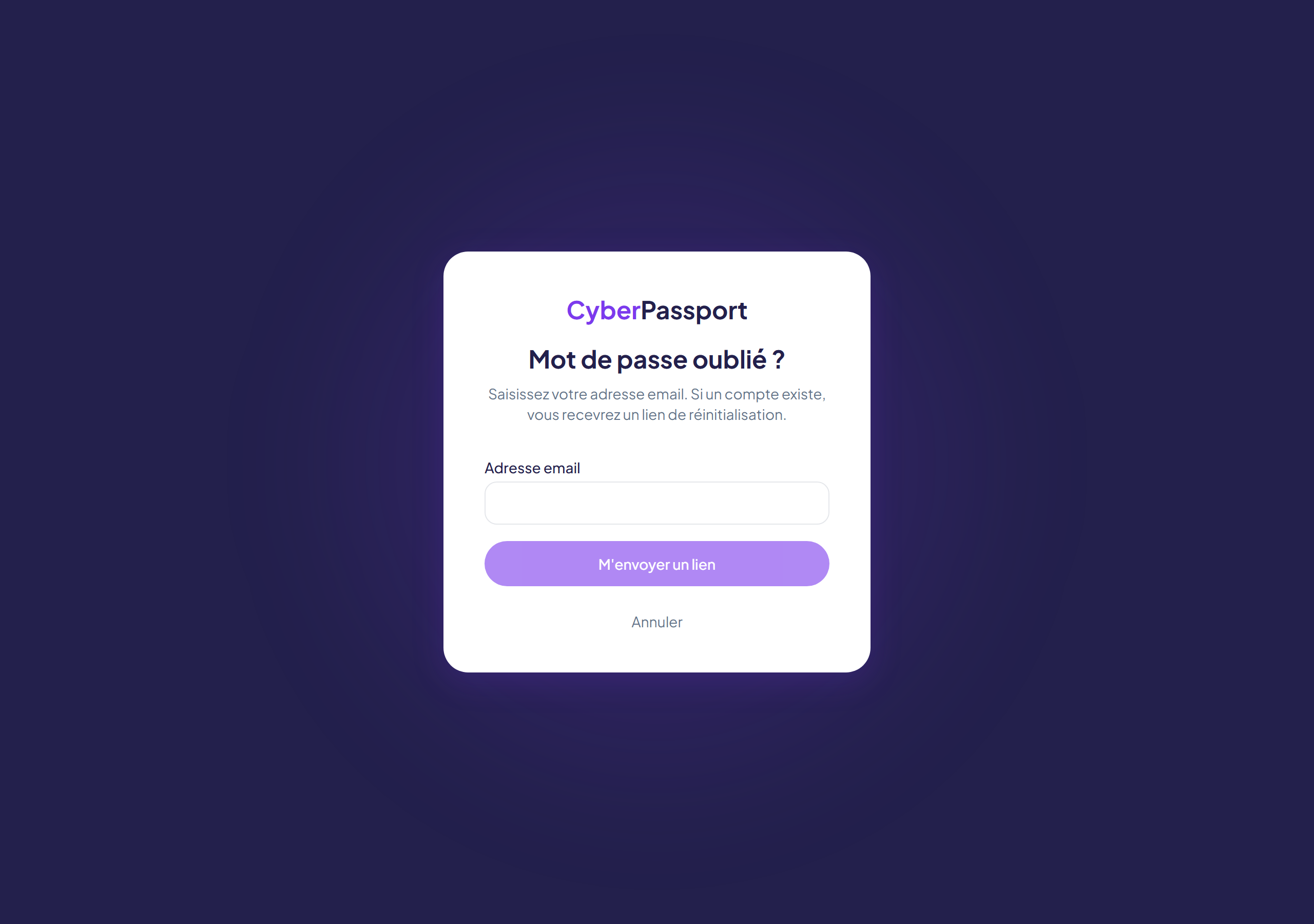
/login, click "Forgot your password?". - Enter your email address.
- Click "Send me a link".
- Open the email you receive (subject "[CyberPassport] Reset your password").
- Click "Choose a new password" in the email.
- Enter the new password (same policy as signup) + confirmation.
- Click "Update my password".
- You can now sign in again with the new password.
⚠️ Important:
- The reset link is valid for 1 hour.
- It is single-use — if you click it twice, the second use is refused (request a new link).
- If you don't receive any email, check your spam folder. CyberPassport will not tell you whether the email exists or not — this is a protection against attacks (it's impossible to guess whether a given address has an account).
Combine both methods — add a password to my Google account
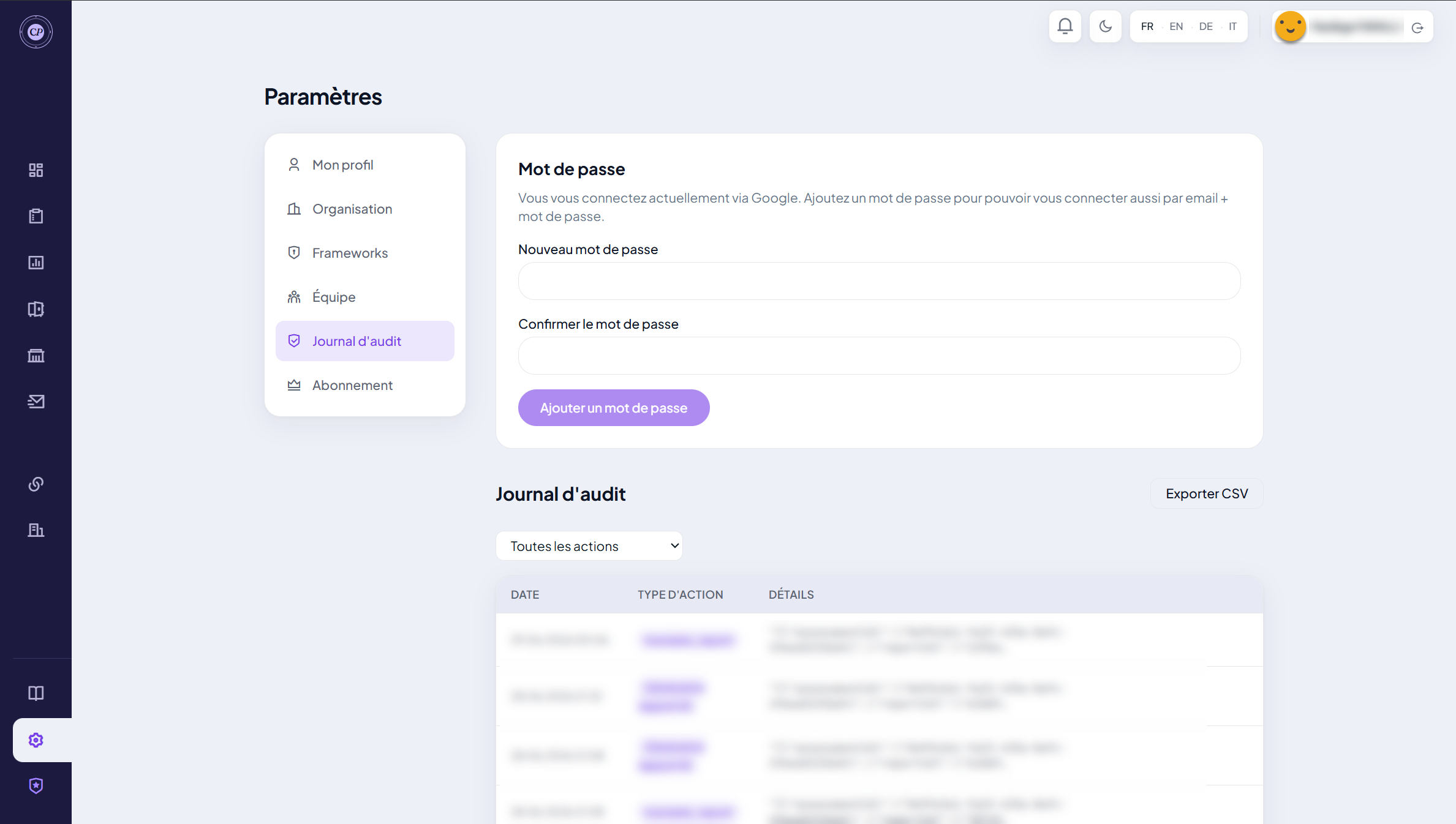
If you created your account with Google and you also want to be able to sign in with email/password:
- Sign in with Google as usual.
- Go to Settings → Security (
/settings/security). - "Password" section: "You are currently signing in via Google. Add a password…"
- Enter a password + confirmation.
- Click "Add a password".
You can now use either method to sign in.
🟣 Tip: useful if your company changes its Google identity provider, or if your Google account is temporarily suspended — you keep a backup access via password.
Next step
Created your account? On to creating your organisation.
→ Next guide: Set up my organisation